
 Creating, saving, and accessing configuration profiles was never
easy, so Apple Inc. has come up with the iPad configuration utility to ensure seamless
sharing of the content. Undoubtedly, many enterprise users use iPhone Configuration Utility to
manage iPads, iPhones, and iPod touch in corporate environments. The company
has made this configuration
utility available in various versions that fit compatible with Mac OS X
and Windows PCs. You can download
iPhone Configuration Utility for creating, editing and installing
configuration profiles and also for installing provisioning profiles in the
corporate environments. Apart from that, the configuration utility also helps in installing
unpacked ‘.app’ bundles and allows a user to view the Syslog of the connected
device in order to prevent serious company frauds.
If
you’ve read a number of how
to use iPhone Configuration Utility guides, then follow this blog to
know about some important things about the utility.
What is a Configuration Profile?
Apple’s
iPhone/iPad Configuration
Utility creates configuration profiles that are suitable for IT
departments and cellular carriers. The files have the ‘.mobileconfig’ file
extensions and they are quite helpful while distributing network settings to
iOS devices. A configuration profile generally contains Wi-Fi, VPN, email,
calendar, and passcode restriction settings to empower your iOS device with all
the leading technological advancements. You can easily distribute the
configuration profile to your employees and permit them to configure their
Apple devices and then connect them to the corporate network.
How a Configuration Profile Can Become Dangerous?

So
far, the configuration utility
appears to be so good. If a malicious author gains an access to this utility,
he can theoretically create his own configuration profile files and distribute
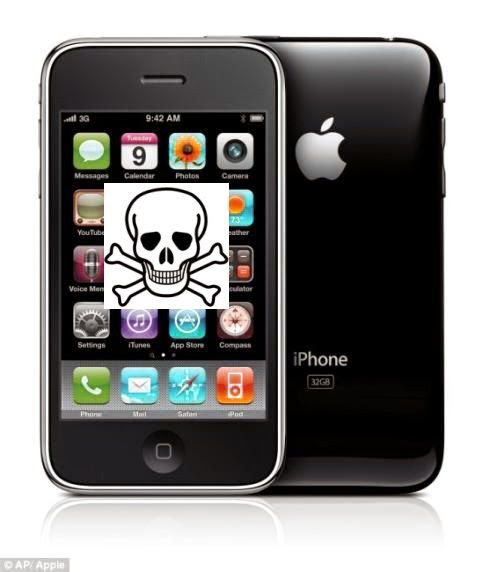
them to spread malicious infections on your iOS devices. The profile may
configure your clean and virus-free iOS devices to use a malicious proxy or
VPN, allowing the attacker to monitor everything you transfer or access using a
particular network. Additionally, the malware author may trigger the
configuration profile to redirect the connected device for phishing websites or
malicious pages.
How Malicious Configuration Profiles Can Get Installed?

You
can distribute configuration profiles as email attachments as well as files on
web pages. An attacker may create a phishing email and encourage employees to
install a malicious configuration profile that is already there as an email
attachment. He can also set up a phishing site, which tries to download a
malicious configuration profile file, and redirects users to the web site until
infection gets installed.
When the configuration profile gets downloaded, iOS will ask for your
permissions about installing the profile on your device. If you download and
install a malicious configuration profile, then your PC, online, device, user,
and data security will be at a stake. The malicious configuration profiles can
only damage your iDevice in a limited way as it can’t replicate itself like
other computer viruses. The best part of the infection is that it automatically
gets removed from your iOS devices and also erases the harmful changes,
whenever you delete the malicious configuration profile.
Simple Tips for Managing Installed Configuration Profiles
• Open the ‘Settings’ app on your iPhone to view all the configuration profiles installed on your device
• Tap on the ‘General’ category and look out for the ‘Profile’ option
• If you can’t see the ‘Profile’ option on the ‘General’ tab then it simply means that you don’t have any configuration profile installed on your device
• If you see the ‘Profile’ option, tap on it to view your installed configuration profiles
• Read the details of the configuration profiles, inspect them, and immediately remove the ones that you don’t need
Enterprises should prevent their employees from downloading and installing additional configuration profiles on their corporate iDevices. Corporate companies should also check their managed devices regularly to look for additional configuration profiles installed on them, and they should remove them remotely.
Conclusion
It
is true that Apple’s iOS is not as much vulnerable to malware as Windows is,
but it is also not completely impervious. Malware authors and attackers may try
installing malicious configuration profiles to infect an iPhone or iPad.
Although, the vulnerability isn’t being exploited in the real world, but this
blog is a gentle reminder to support the fact that no platform is completely
secure. Users should pay high attention while installing certificates via
configuration profiles as it may install a malicious certificate to infect secure
websites.


