
For a busy professional or businessman, a malfunctioning computer simply means a loss of production hours, increased downtime and huge losses of revenue. In today’s fast-paced digital life, you cannot afford to live without a computer for long. You depend on your PC for important emails that you send and receive, preparing documents, analyzing spreadsheets, making presentations and browsing websites. But sometimes your work comes to a standstill because of various Windows errors. While using computers, you may come across a variety of errors and "The remote procedure call failed and did not execute" is one of them.
It is like any other Windows error so you can fix it by using simple tips and tricks available on the web. But before doing that you must understand the symptoms of the error so that you apply the tips in the appropriate manner.

In the majority of cases, we get tips online and start applying those randomly without caring the important messages and pop-ups that appear during the troubleshooting. Even if we read those messages we fail to understand because of the dearth of technical know-how. When you don’t apply the tips in the right manner, you end up creating many problems while troubleshooting one. In such cases, the best way is to call a professional online tech support company and ask for instant computer service.
In this blog, you will get to know about the symptoms, causes and resolution tips to fix “the remote procedure call failed” error. However, these tips are expert suggested; you should consult a reputed computer technician in case you have any confusion while using the tips. Only a certified and trained technician can properly diagnose the issue and then suggest the right troubleshooting method.
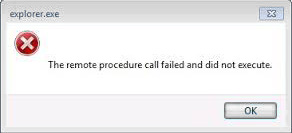
You may face the error if you are using a Windows Server 2008-based terminal server. It takes place when many users attempt to log on or log off from the terminal server simultaneously. Connection requests may get denied, and the users receive the following error message:
“The remote procedure call failed and did not execute.”
For instance, the error may take place when 20 to 30 users are trying to access the server at the same time. But a user may succeed to log on or log off if he tries to access the server for the second time.
Resolution
Once Microsoft acknowledges such errors, it releases hotfixes to fix those troubles for the users. These releases are very helpful, and you can fix the error just by installing these programs on your PC. To download them, you need to visit Microsoft Knowledge Base website and look for the supported hotfix that you require for troubleshooting the issue.
If you have downloaded any programs or application from the web in the past; then you will not find it complex. It is just about finding the appropriate program and, then downloading it on your computer. Once you find the right hotfix or locate the “Hotfix download available” button, you just need to click on it. Once you click it, the downloading begins and then you can easily install it on your PC. In case, you don’t find the hotfix available, then you can also write to Microsoft Customer Service and Support to get a specific hotfix to fix the problem.
You can apply this hotfix only if your PC is running one of the following operating systems:
• Windows Server 2008
• Windows Server 2008 Service Pack 2.
Apart from it, you must restart your computer once you install the hotfix to apply the changes. If your PC has some previously released hotfixes, then you shouldn’t worry as it will not replace them.
In this section, you will get information about things that you should do to get rid of the error temporarily. The tips are given below to help you modify the Windows Registry. For added security, you should back up the registry before you modify them. In case of any issue, you can restore the registry using the backup.
Find the tips that help you modify the registry:
• Click ‘’Start, click ‘Run,’ type ‘regedit’ in the open box and then click ‘OK.’
• Now, locate the following registry subkey:
• HKEY_LOCAL_MACHINE\SYSTEM\CurrentControlSet\Control\Terminal Server
• Click ‘Edit,’ point to ‘New’ and then click DWORD Value.
• Now move to the New Value #1 box, and type IgnoreRegUserConfigErrors, and then press ENTER.
• Next, you need to right-click ‘IgnoreRegUserConfigErrors,’ and then click ‘Modify.’
• Move to the Value data box, type 1, click Decimal, and then click OK.
• Finally exit Registry Editor.
It should fix the error and let you access the server without showing any error.
Errors and problems are not new for computers. You face a variety of errors if something goes wrong with Windows Registry, operating system, hard drive, drivers and other vital PC parts. Apart from it, viruses and malware can also do harm to the PC and cause errors. If you fail to diagnose the reason for an error, then you should take help of online tech support service for instant computer service through a trained computer technician.
It is like any other Windows error so you can fix it by using simple tips and tricks available on the web. But before doing that you must understand the symptoms of the error so that you apply the tips in the appropriate manner.

Things to Consider
In the majority of cases, we get tips online and start applying those randomly without caring the important messages and pop-ups that appear during the troubleshooting. Even if we read those messages we fail to understand because of the dearth of technical know-how. When you don’t apply the tips in the right manner, you end up creating many problems while troubleshooting one. In such cases, the best way is to call a professional online tech support company and ask for instant computer service.
In this blog, you will get to know about the symptoms, causes and resolution tips to fix “the remote procedure call failed” error. However, these tips are expert suggested; you should consult a reputed computer technician in case you have any confusion while using the tips. Only a certified and trained technician can properly diagnose the issue and then suggest the right troubleshooting method.
Symptoms
You may face the error if you are using a Windows Server 2008-based terminal server. It takes place when many users attempt to log on or log off from the terminal server simultaneously. Connection requests may get denied, and the users receive the following error message:
“The remote procedure call failed and did not execute.”
For instance, the error may take place when 20 to 30 users are trying to access the server at the same time. But a user may succeed to log on or log off if he tries to access the server for the second time.
Resolution
Install a Supported Hotfix to Resolve the Error
Once Microsoft acknowledges such errors, it releases hotfixes to fix those troubles for the users. These releases are very helpful, and you can fix the error just by installing these programs on your PC. To download them, you need to visit Microsoft Knowledge Base website and look for the supported hotfix that you require for troubleshooting the issue.
If you have downloaded any programs or application from the web in the past; then you will not find it complex. It is just about finding the appropriate program and, then downloading it on your computer. Once you find the right hotfix or locate the “Hotfix download available” button, you just need to click on it. Once you click it, the downloading begins and then you can easily install it on your PC. In case, you don’t find the hotfix available, then you can also write to Microsoft Customer Service and Support to get a specific hotfix to fix the problem.
More About the Hotfix
You can apply this hotfix only if your PC is running one of the following operating systems:
• Windows Server 2008
• Windows Server 2008 Service Pack 2.
Apart from it, you must restart your computer once you install the hotfix to apply the changes. If your PC has some previously released hotfixes, then you shouldn’t worry as it will not replace them.
Workaround
In this section, you will get information about things that you should do to get rid of the error temporarily. The tips are given below to help you modify the Windows Registry. For added security, you should back up the registry before you modify them. In case of any issue, you can restore the registry using the backup.
Find the tips that help you modify the registry:
• Click ‘’Start, click ‘Run,’ type ‘regedit’ in the open box and then click ‘OK.’
• Now, locate the following registry subkey:
• HKEY_LOCAL_MACHINE\SYSTEM\CurrentControlSet\Control\Terminal Server
• Click ‘Edit,’ point to ‘New’ and then click DWORD Value.
• Now move to the New Value #1 box, and type IgnoreRegUserConfigErrors, and then press ENTER.
• Next, you need to right-click ‘IgnoreRegUserConfigErrors,’ and then click ‘Modify.’
• Move to the Value data box, type 1, click Decimal, and then click OK.
• Finally exit Registry Editor.
It should fix the error and let you access the server without showing any error.
Conclusion
Errors and problems are not new for computers. You face a variety of errors if something goes wrong with Windows Registry, operating system, hard drive, drivers and other vital PC parts. Apart from it, viruses and malware can also do harm to the PC and cause errors. If you fail to diagnose the reason for an error, then you should take help of online tech support service for instant computer service through a trained computer technician.


