Showing posts with label computer technician. Show all posts

Monday, 31 August 2015

What to Do If You Face 0x80070035 Error While Using MS Outlook

Facing Windows errors while working on something important is nothing less than a nightmare. Microsoft offers MS Office with a variety of applications to help you perform your regular computing tasks, and MS Outlook is one of them. We use Outlook at both home and offices to exchange communication or to send or receive emails. Any issue with the Outlook or any other component of your PC can create huge troubles for you. One of these troubles is “0x80070035” error message that may take place on your computer while you try to add a data file in MS Outlook.

In the current blog post, you will get detailed information regarding the error that also includes its symptoms, causes, and troubleshooting tips. Using the information provided in the blog post, you can self-troubleshoot the issue. But sometimes the tips may not work either because you have applied them in the wrong manner, or your computer is facing some other issue. In such a scenario when you are not able to fix the issue on your own, the best way is to call an online tech support company. You should speak to a certified computer technician for instant and online computer repairs.

You can find a reliable tech support company by researching on the web and then calling at their toll-free number and then instantly you will get connected to a trained technician. Once you explain the symptoms and problems to the technician, he will instantly connect to your computer through remote and start troubleshooting in a highly secure and transparent manner. But if you are an advanced PC user with sound knowledge of computers and operating system, then you can do it yourself by using the information given below.

Symptoms of the Error


You face the 0x80070035error message on your computer screen when you launch MS Outlook and open Account Settings, and then you click Add on the Data Files tab. You will see the below error message:

An unknown error occurred, error code: 0x80070035

However, nothing happens if you click ‘New Items,’ select ‘More Items,’ and then click ‘Outlook Data File’ on the ‘Home Ribbon.’ In such cases, however, you will not be able to create an Outlook data file but you won’t see any error as a result of this action.

In another case, if you click File, you click Open & Export in Outlook 2013 or Open in Outlook 2010, and then you click Open Outlook Data File, nothing will result. It will not prompt you to open the Outlook data file, and you will not face any error.

Causes of the Error


The error mostly occurs when My Documents folder on your PC is located on a network share and the network share gets currently unavailable. Once you face the error, you should instantly look for resolutions to restore the Outlook functions. Refer the below-mentioned tips to fix the issue on your own.

How to Resolve

Follow the below steps to establish the location of your My Documents folder, and to change the path if it is not valid.

• First of all, exit Outlook.

• Next you need to start Registry Editor. You should apply the following procedures to start the Registry Editor.

• For Windows 8 PCs, you need to press ‘Windows key + R’ together to open a ‘Run’ dialog box. Type regedit.exe in the box and then press OK.

• For Windows 7 PCs, you need to click Start, type regedit.exe in the search box and then hit ENTER.

• Once you start the Registry Editor, you should locate and then click the following subkey in the registry:


HKEY_CURRENT_USER\Software\Microsoft\Windows\CurrentVersion\Explorer\User Shell Folders

• Now you need to locate the following value:

“Personal.”

• You should also verify that the Data field for the ‘Personal’ value contains a valid path for the location. If you are sure of the veracity of the path, then you can copy and paste it into Windows Explorer to check if it is valid or not.

• Next you need to double-click the following value:

“Personal.”

• Now move to the Value data box and then type the valid path of the ‘My Documents’ folder. Now click OK.

• Note: The default data for this value is “%USERPROFILE%\Documents.”

• Finally exit Registry Editor.

The tips mentioned above should resolve the issue, and you may not be facing the error again.

Conclusion


It is difficult to rule out the error possibility entirely, and it may take place again. If it occurs, then you should stop trying to fix it on your own and contact a trained computer technician to fix the issue. The technician will scan or diagnose the PC entirely using the right tools and then troubleshoot all the errors related to MS Outlook to prevent any possibility of error in future.

Tuesday, 25 August 2015

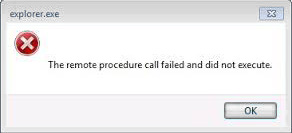
Tips to Fix "The remote procedure call failed and did not execute" Error With a Windows Server 2008 Server

  For a busy professional or businessman, a malfunctioning computer simply means a loss of production hours, increased downtime and huge losses of revenue. In today’s fast-paced digital life, you cannot afford to live without a computer for long. You depend on your PC for important emails that you send and receive, preparing documents, analyzing spreadsheets, making presentations and browsing websites. But sometimes your work comes to a standstill because of various Windows errors. While using computers, you may come across a variety of errors and "The remote procedure call failed and did not execute" is one of them.

It is like any other Windows error so you can fix it by using simple tips and tricks available on the web. But before doing that you must understand the symptoms of the error so that you apply the tips in the appropriate manner.

computer support

Things to Consider


In the majority of cases, we get tips online and start applying those randomly without caring the important messages and pop-ups that appear during the troubleshooting. Even if we read those messages we fail to understand because of the dearth of technical know-how. When you don’t apply the tips in the right manner, you end up creating many problems while troubleshooting one. In such cases, the best way is to call a professional online tech support company and ask for instant computer service.

In this blog, you will get to know about the symptoms, causes and resolution tips to fix “the remote procedure call failed” error. However, these tips are expert suggested; you should consult a reputed computer technician in case you have any confusion while using the tips. Only a certified and trained technician can properly diagnose the issue and then suggest the right troubleshooting method.

Symptoms


You may face the error if you are using a Windows Server 2008-based terminal server. It takes place when many users attempt to log on or log off from the terminal server simultaneously. Connection requests may get denied, and the users receive the following error message:

“The remote procedure call failed and did not execute.”

For instance, the error may take place when 20 to 30 users are trying to access the server at the same time. But a user may succeed to log on or log off if he tries to access the server for the second time.

Resolution
The remote procedure call failed

Install a Supported Hotfix to Resolve the Error


Once Microsoft acknowledges such errors, it releases hotfixes to fix those troubles for the users. These releases are very helpful, and you can fix the error just by installing these programs on your PC. To download them, you need to visit Microsoft Knowledge Base website and look for the supported hotfix that you require for troubleshooting the issue.

If you have downloaded any programs or application from the web in the past; then you will not find it complex. It is just about finding the appropriate program and, then downloading it on your computer. Once you find the right hotfix or locate the “Hotfix download available” button, you just need to click on it. Once you click it, the downloading begins and then you can easily install it on your PC. In case, you don’t find the hotfix available, then you can also write to Microsoft Customer Service and Support to get a specific hotfix to fix the problem.

More About the Hotfix


You can apply this hotfix only if your PC is running one of the following operating systems:

• Windows Server 2008

• Windows Server 2008 Service Pack 2.

Apart from it, you must restart your computer once you install the hotfix to apply the changes. If your PC has some previously released hotfixes, then you shouldn’t worry as it will not replace them.

Workaround


In this section, you will get information about things that you should do to get rid of the error temporarily. The tips are given below to help you modify the Windows Registry. For added security, you should back up the registry before you modify them. In case of any issue, you can restore the registry using the backup.

Find the tips that help you modify the registry:

• Click ‘’Start, click ‘Run,’ type ‘regedit’ in the open box and then click ‘OK.’

• Now, locate the following registry subkey:

• HKEY_LOCAL_MACHINE\SYSTEM\CurrentControlSet\Control\Terminal Server

• Click ‘Edit,’ point to ‘New’ and then click DWORD Value.

• Now move to the New Value #1 box, and type IgnoreRegUserConfigErrors, and then press ENTER.

• Next, you need to right-click ‘IgnoreRegUserConfigErrors,’ and then click ‘Modify.’

• Move to the Value data box, type 1, click Decimal, and then click OK.

• Finally exit Registry Editor.

It should fix the error and let you access the server without showing any error.

Conclusion


Errors and problems are not new for computers. You face a variety of errors if something goes wrong with Windows Registry, operating system, hard drive, drivers and other vital PC parts. Apart from it, viruses and malware can also do harm to the PC and cause errors. If you fail to diagnose the reason for an error, then you should take help of online tech support service for instant computer service through a trained computer technician.

Sunday, 23 August 2015

Computer Repair Tips to Fix 0x80070035 Windows Error Message

In today’s modern life when we depend on the web and the Internet for every small to the big thing, it turns troublesome if our PC stops functioning. If you are a Windows PC user then you probably know that your computer is subject to certain errors and issues, so you must know the appropriate methods to troubleshoot them. One of such critical Windows errors is 0x80070035 that can stop you from using your PC. Once you see the error message on your PC screen, you should rush to restrict the error’s impact on other components of your computer. If you ignore the error for a long time, then you may lose vital information and data stored on your device.
0x80070035


In the current blog post, you will get useful information and tips to fix the error on your own. Usually, we require a trained computer technician or a third party computer repair agency to fix the error. But if you know a lot about computers, then you can self-troubleshoot your computer using the tips mentioned below in this blog. These tips and tricks may not be helpful if you lack knowledge about the latest technology and computers. You should also refrain from using these tips without adequate knowledge and clear guideline about them because any wrong step can cause disastrous consequences for your computer.

Usually, these errors are the outcome of poor computer maintenance, missing system and security updates, and malicious programs and applications. To prevent these errors, you must pay attention to computer maintenance and must not miss any of the updates to keep your PC running well. If you miss any important system or security update, you make your computer vulnerable to a variety of threats. Apart from it, the performance of your PC also goes down and then you start facing a lot of issues and errors.

Causes


By now you have understood the general causes of the error and now let us know what precisely causes the 0x80070035 on your PC:

In the most of the cases, you come to the error code on your Windows 8 PC because of the damaged Windows system files. If the system files go corrupt in your system, it might instantly cause the error.

There is a variety of events that may lead to corrupt or damaged system files. It may result because of an incomplete installation, and accidental deletion of applications or programs. You may also face the error if your system gets attacked by an adware or spyware, or it shuts down abruptly. All the above situations may lead to corrupt or damaged system files. If you want to prevent the error in future, then you must ensure that your PC stays protected round the clock by an effective antivirus program. You should also take precautions while installing a software or hardware so that it goes through smoothly without causing any error.

Resolution

computer repair
However, it is not very complex to use the tips to resolve the error yet you need to do it carefully to avoid any adverse consequences. There are two ways of troubleshooting the error. The first is meant for the advanced user, and the other is meant for basic users. Let us go through each one of them one-by-one.

For Advanced Computer Users


• Start your PC and log on as an administrator.

• Click the Start button and then select All Programs >> Accessories >> System Tools and then click System Restore.

• In the new window, select ‘Restore my computer to an earlier time’ option and then click ‘Next.’

• You should select the most recent restore point from the “On this list, click a restore point” list, and then click ‘Next.’

• Now go to the confirmation window and click ‘Next.’

• Finally, you have to restart the PC once the restoration gets over.

Once you finish all the steps the issue should get over, and it will not appear again on your PC screen.

For Basic Computer Users


• Go to the web and research to find a repair utility to fix the Error Code 0x80070035.

• Download the utility by clicking the ‘Download’ button.

• Now install the program and click ‘Scan’ button.

• Now click ‘Fix Errors’ button once the scan gets over.

• Restart your PC.

It is an automatic process to get the issue resolved.

Conclusion


It might be possible that you face the error again despite using the above tips. It happens because there remains some malicious of damaged system file that you are not able to detect and remove or repair. To do that you require expert computer repair help. A trained and certified computer technician can easily diagnose the issue and use the most suitable troubleshooting technique to resolve the error. Online computer repair seems to be a suitable option if you are not comfortable in fixing your PC on your own. Apart from it, a computer technician will also fix other minor or major errors on your PC to improve the performance and productivity of your computer.

Thursday, 30 July 2015

What to Do When You Come Across 0x00000050 Windows Error?

Irrespective of the version and edition of Windows operating system, users often come across a variety of system errors. Users come across such errors through error messages that get flashed on your PC. The 0x00000050 error message is one of those errors that you may come across on your Windows PC. It is a critical error that may take place because of a variety of reasons. So before troubleshooting it gets imperative to establish the cause of the issue and then choose the troubleshooting steps accordingly.


If you are facing the error on your PC, then there are two ways of getting rid of it. The first method is to call a professional computer technician and avail the required technical support. The other method is to go online and look for suitable troubleshooting steps on various blogs and forums. But to fix your PC on your own, you must possess the basic knowledge about computer operations and components of a PC. If you are an advanced PC user with sound knowledge of various PC components including software and hardware, then only you should go for self-troubleshooting without involving third party computer support services.

In the current blog post, you will get information on two specific scenarios of the above error apart from symptoms and ways of resolution. Continue reading the blog, if you are facing the error and then apply the steps to get rid of the error.

Scenario One:

Error Faced While Accessing Files on Windows NT from Windows 95


You come across the error while trying to access files on a computer running on a Windows NT 4.0 from a Windows 95 client computer. Once the error takes place on your PC, the Windows NT computer may start hanging or stop responding. As a result, you come across the following error message:

STOP 0x00000050

Cause of the Error


You face the error on your PC if you have installed Dr. Solomon's WinGuard for Windows NT version 7.65 on your PC and it is running as a service. The service might be running on the Windows NT-based computer. However, there are multiple reasons behind the error, but in the current scenario, above mentioned is the main cause.

How to Resolve


According to the antivirus manufacturer Dr. Solomon's Software Ltd., the updated version 7.66 can fix the issue. It gets advisable to install the updated version to fix the issue. If you continue facing the error even after installing the updated version, then you need to contact the software manufacturer for expert technical support.

You may disable the WinGuard service to fix the issue temporarily. Follow the below steps to disable the service:

• Go to Control Panel through Start menu and then double-click Services.

• Now, click Guard, and then click Stop.

• Finally click Startup and the click ‘Disabled’ for the Startup setting.

In this way, you can disable the program to fix the issue temporarily.

Scenario Two

Error Faced While Installing Windows NT 4.0


Symptoms of the Error

You come across the following error message while trying to perform a new or parallel installation of Windows NT 4.0. It may result in the error mentioned below.

STOP: 0x00000050 (0xF000B682,0x00000000,0x00000000,0x00000002)

PAGE_FAULT_IN_NONPAGED_AREA

Cause of the Error


You may face similar errors because of two different causes. This error may occur if you try to perform a clean installation of Windows NT 4.0 by using a modified Disk 2. It comes with a three disk installation set containing the Setupdd.sys file. It comes with Windows NT 4.0 Service Pack 2.

How to Resolve


Steps to resolve the error is the crux of the blog post. To resolve the error, you need to do either of the following.

Option One:


You need replacing the Windows NT 4.0 Service Pack 2 copy of the Setupdd.sys file. The file is located on Disk 2 with the original version of Setupdd.sys.

Option Two:


You can also fix the error by creating new floppy installation disks. You can do this by using the WINNT /OX or WINNT32 /OX commands. The error should get fixed once you create new floppy discs for installation.

Conclusion


In the above blog post, you came to know about troubleshooting steps that help you in resolving 0x00000050 error. The steps help you while you face issues in installing Windows NT 4.0 or accessing files stored on a PC running Windows NT 4.0. But there remains a possibility that you continue facing the error even after using these tips. In such a situation, you should contact a computer support helpdesk to get rid of the issue. A professional computer technician from such service providers will help you resolve the issue by employing the latest tips and techniques. So call a leading technical support service in case you are facing issues with your Windows.

Monday, 27 July 2015

Advanced Tech Support Tips to Troubleshoot 0x00000116

Facing Windows error with your Windows 7 PC is nothing new, and you often come across such errors while working on your PC. Such errors take place on your computer without any previous alert or messages. There are various errors that you may come across, and 0x00000116 is one of them. It is a critical error that can significantly harm your PC and vital software and hardware components. It leaves you in a miserable situation if you are not prepared with a tech support partner to help you out of the crisis.

Nowadays, the majority of users rely on using laptops because of its higher portability and user-friendliness. But laptops are prone to such errors because of their compact design and rough usage. In such cases, you must have access to expert computer repair services to keep your device always up and running. The moment you come across this STOP error on your screen, you should look for a trained computer technician who can duly diagnose and troubleshoot the issue at the earliest.

Things to Do


Today every user acts like a computer technician to a certain extent because of wide usages and access to online information resources. The moment we face an issue with our computer, we go online and start looking various blogs, forums, and articles that can help in troubleshooting the issue. But remember that these blogs and articles wouldn’t of any help if you lack basic computer knowledge. So it is necessary that you have a sound exposure to hardware and software components of your PC so that you can apply the tips in the stipulated manner.

There are always two methods of fixing a critical error like 0x00000116. The first is self-troubleshooting with the available online resources and the second is hiring a third party tech support helpdesk. You can try the first one if you carry sound knowledge of computer working and technology. But if you lack these skills then you should go out and search any leading computer support agency for quick laptop repair.

In this blog post, you will get to know about symptoms, causes, and resolutions to fix the error. Let us begin with the symptoms of the error:

Symptoms of the Error


The error we are discussing in the current blog is both a stop error as well as a BSOD error, therefore, the symptoms of the error are similar to other BSOD errors. Once the error takes place, the screen turns blue and the system stops working altogether. The user fails to perform any activity on the system. At certain occasions, the user may also witness frequent Windows crashes.

Causes Behind the Error


There might be a variety of reasons behind the 0x00000116, and you find the exact error only through an expert diagnosis of the system. Missing or damaged system files are the prime reasons behind the error. Windows operating system runs with the help of many vital system files, and if any of those files goes missing, you face an error. While troubleshooting the error, it is important to ascertain that the OS doesn’t lack any important system files. If Windows lacks such files, then you either require repairing the OS or need to install a fresh OS copy to troubleshoot the error.

Steps for Resolution


Find the steps that help you in resolving the issue:

Install All Available Windows Updates


Microsoft keeps on releasing updates to plug the loopholes in the operating system. The updates aim to improve Windows system files. Sometimes, you can resolve a blue screen error by simply updating Windows using the latest Service Pack or other patch released by Microsoft.

Follow the below-mentioned steps to check for Windows updates if you are using Windows XP, Vista, 7, and 8:

· Start by clicking the Start button.

• Click the Start button.

• Now type ‘update’ into the search box and then hit ENTER.

• As a result, the Windows Update dialog box will appear.

• Click the Install Updates button if you find the updates.

Test Your RAM for Corruption


Such BSOD errors may also take place because of RAM or memory corruption. You may have RAM issues on your PC if you are facing random PC reboots, getting ‘beep’ codes on startup or frequent computer crashes. These symptoms indicate that your memory could be corrupt. According to experts, around 10 percent of the applications crashes in Windows take place because of memory corruption.

If you start facing the error right after adding new memory to your PC, then you should temporarily remove it to make sure that it is not the cause of the error. If it resolves the error, then it gets clear that it is the source of the issue. It indicates that the new memory that you have added is either incompatible or corrupt. In such cases, you need to replace the RAM with new and compatible one.

If you haven’t added any new RAM to your PC, then the next step is to perform a diagnostic test on the current memory on your PC. You need to conduct a memory test that will scan for hard memory failures and common Windows errors that might handle the error. Once you rectify the issues, the error will get resolved.

Conclusion


Fixing 0x00000116 error can be a daunting task for a novice user but once you apply the tips mentioned above, it gets easy for one and all. Taking these troubleshooting steps as a guaranteed way of getting the error fixed is not right. You may continue facing the error even after applying these tips. In case it happens to you, then call either an expert computer technician or dial to a tech support help desk for quick online computer repair.

Friday, 24 July 2015

Expert Troubleshooting Tips to Repair “0x0000007B” Error?


Your Windows PC includes all kinds of crucial components to meet your computing requirements. It provides you a secure environment to ensure that all your stored information remain safe on your PC. The regular updates from Windows help you to keep your computer updated. However, sometimes you may receive blue screen errors on your computer after making any BIOS changes. In this blog, you will come to know about the blue screen error “STOP 0x0000007B INACCESSABLE_BOOT_DEVICE” and methods to fix it on your PC.

Blue Screen error often appears on your screen once your PC faces a fatal system error. The error may occur due to the corruption in registry entries, outdated or inappropriate system drivers, etc. In this situation, there is a chance of losing all your stored information from the computer. So, you require taking an immediate action to fix this problem before it causes further damages to your PC.
Read below to know about the PC troubleshooting steps that you can perform to fix this common blue screen error on your Windows 7 or Windows Vista PC:

Symptoms of the Error


On a PC running Windows 7 or Windows Vista, you may receive this error after changing the Serial Advanced Technology Attachment (SATA) mode of the system's boot drive. After changing the SATA mode of the boot drive to AHCI specification or RAID features in your computer BIOS, you may receive the following error while restarting the computer:  
“STOP 0x0000007B INACCESSABLE_BOOT_DEVICE”

Causes of the Error


The error may occur due to the disabled disk driver on PC running Windows 7, or Windows Vista. So, you need to enable the disk driver before changing the SATA/RAID mode of the boot drive.

What to Do Next?


Once your PC gets stuck due to this blue screen error, you may need to contact a certified computer technician to get rid of it. The technicians will help you to fix this problem quickly through a secure channel and thus prevents further damage to your computer parts. However, if you don’t wish to spend your money on local technicians, or a computer support services, then you can use the troubleshooting steps mentioned below to fix your problem. 

PC Troubleshooting Steps You Can Perform to Fix This Error


Before you change SATA mode of the boot drive, you need to enable the AHCI driver in the registry editor to fix this issue. However, making any incorrect changes to the computer registry may cause some serious problems to your computer. So, first you need to create a PC registry backup. Refer the two stages given below to know how to create a registry backup, and then how to enable the AHCI driver:

STAGE 1:

 
Create a backup of your computer’s registry. Use the following steps to create a registry backup:
1.    To create a registry backup, click the ‘Start’ menu.
2.    In the search box, type “regedit.exe,” and then press ‘ENTER’ on your keyboard to open the ‘Registry Editor.’
3.    In the ‘Registry Editor’ window, select the registry key or a subkey you are trying to backup.
4.    Now, click the ‘File’ menu, and go to the ‘Export’ button to open the ‘Export Registry’ dialog box.
5.    In the dialog box, choose the location to save your backup copy, and then type the name of a file in ‘Filename’ box.
6.    After selecting the location and typing the file name, click ‘Save’ to create the registry backup.  

STAGE 2:

 
After creating the registry backup, you can enable the AHCI driver. Use the following steps to enable the driver:
1.    Close all Windows based programs, and then click the ‘Start’ menu.
2.    In the search box, type “regedit.exe,” and then hit ‘ENTER’ on the keyboard to open the ‘Registry Editor’ window.
3.    The User Account Control dialog box appears before you, then you need to click ‘Continue’ to proceed.
4.    In the ‘Registry Editor’ window, try to locate either "HKEY_LOCAL_MACHINE\System\CurrentControlSet\Services\Msahci" or "HKEY_LOCAL_MACHINE\System\CurrentControlSet\Services\IastorV" subkey.
5.    Once you find the respective subkey, click on it.
6.    Now, in the right pane, go to the ‘Name’ column.
7.    In the ‘Name’ column, right-click ‘Start,’ and then click ‘Modify.’
8.    Now, type ‘0’ in ‘Value’ data box, and then click ‘OK.’
9.    Click the ‘File’ menu, and then click ‘Exit’ to quit the ‘Registry Editor.’  
After applying the troubleshooting steps, you may be able to change the SATA mode of the boot drive to either AHCI specification or RAID features. However, as stated above, you need be very careful while performing these troubleshooting steps because any incorrect changes to PC registry may cause PC malfunctioning. If you are having trouble while performing the troubleshooting steps, then you can also take help from a reliable computer technician to fix this issue.

Conclusion


In this blog, you have learned some basic troubleshooting steps to fix a common blue screen error on a PC running Windows 7, or Windows Vista. If the error message still appears on your PC screen, then you can visit Microsoft’s official website to download and run the Microsoft’s ‘Fix it’ to resolve this problem on your computer. If nothing helps, then go ahead and connect with an online computer support helpdesk to fix such annoying and time-consuming PC issues. 

Thursday, 16 July 2015

Expert Computer Support Tips to fix 0x80070035 Windows Error

Irrespective of the version and edition of Microsoft Operating System, you are prone to counter various Windows errors on your PC. You might wonder that why you keep facing such critical errors when you already dedicate enough attention to your PC and its applications. Don’t bother because it is sometimes related to issues that remain beyond your control. The commonly faced 0x80070035 error is one of them that you may encounter on your PC anytime without any prior symptoms. 

Meaning of 0x80070035 Error Message


The error message contains the details of the error. The details may suggest you regarding the reasons for the error, clues about the system component that make the error take place, and other vital information. The numbers present in the error are a part of code containing important data that the manufacturer can decipher to troubleshoot the error. Using the error code, the OEM can reach a logical conclusion to why the error happened. But you shouldn’t assume that by simply having the error code with you, it would become easier for you to fix the issue. 


Things You Need to Do While You Face the Error


Earlier, when users faced trouble they had to rush to a physical PC repair shop for computer solutions. But with the rapid advancement in the Internet technology, most of the services are available online, and computer support is not an exception to that. If you are looking for a computer technician for troubleshooting such error, then simply go online and find a reliable computer solutions provider.
You can reach expert computer technicians by dialing their toll-free number and thus seek online computer solutions. But if you are an advanced PC user with fair knowledge of software and hardware components of a PC, then you can also try troubleshooting the error yourself. 

In this blog post, we are going to discuss very useful troubleshooting steps for troubleshooting the 0x80070035 error. But before doing that, you must know about the causes of the error. 

Probable Causes of Error


Once you receive the error on your computer, then it simply means that there is some issue related to the operation of software or hardware parts of your PC. Some of the probable reasons for the occurrence of this error include: 

•    Inappropriate or failed installation or uninstallation of software or programs.
•    Invalid or corrupt Windows Registry.
•    Virus or malware attack.
•    Abrupt system shutdown due to a power mishap.
•    Accidental deletion or removal of some important system file. 

The most important or immediate cause of the error is the failure of its normal operations by any system or application. 

How to Resolve the Error?


There is a high possibility of facing the error when you are trying to access another PC on the same network. You will see the error code 0x80070035 flashing on your PC screen with the following details:
“Error code: 0x80070035

The network path was not found.”

The error code simply means that the network path not found. The computer is not able to connect to the network. But don’t worry as you can still resolve the error in a convenient manner by following the below listed steps. 

Find the steps to fix the error: 

•    First of all, modify the security firewall settings or you can also disable the entire security software installed on your Windows PC.
•    Next, you need to enable NetBIOS over TCP/IP.
•    Navigate to “Control Panel >> Network and Internet >> Network Connections.”
•    Now right-click on the ‘Connection’ and then choose ‘Properties.’
•    Click “Internet Protocol (TCP/IP) Version 4″ that you can see in the list.
•    Now click ‘Properties,’ and then click ‘Advanced.’
•    Once you reach on the Advanced TCP/IP settings windows, you need to go to “WINS” tab.
•    Finally, under NetBIOS setting, you need to click “Enable NetBIOS over TCP/IP,” and then click OK.
The process is over, and now the error will not appear again. 

Conclusion


At times, mere enabling NetBIOS may not resolve the error, and it may keep haunting you when you require your PC most. In computers, one error gets initiated by a variety of reasons, so don’t assume that one particular troubleshooting method will resolve all the woes. If the steps mentioned above don’t work in resolving the error, then there might be something that you are not able to diagnose. To deal with such critical situations, you need to contact a professional computer support expert, who can thoroughly scan your PC and diagnose the error. After diagnosing the error, the computer technician will apply the appropriate tips to get it fixed.

Monday, 6 July 2015

How Tech Support Helps You Resolve the Remote Procedure Call Failed Error in ISA Server 2004


Many users have reported the remote procedure call failed error in ISA Server 2004. There might be several causes behind the issue. It is an error related to Remote Procedure Call (RPC) that can make your PC malfunction and create troubles while connecting to a particular network. Before we discuss the symptoms of the error, let us first know little more about RPC. 
the remote procedure call failed

RPC is a PC communication protocol that a program uses to place a service request from a program on another computer in a network. The protocol doesn’t need to understand network details. A procedure call is also known as a function call or subordinate call. RPC works on a client/server model.
The program that sends the request is a client and the one that provides the service is the server. RPC is a synchronous operation that keeps the requesting program suspended until the results of the remote procedure are received. 

Let us now understand the symptoms of the remote procedure call failed: 

Symptoms 


Once the error takes place on your PC, the RPC route publishing may not be allowed by a computer running on Microsoft Internet Security and Acceleration (ISA) Server 2004. At the same time, users may receive the following error message:
The remote procedure call failed.

Causes of the Error 


You face the issue when more than one communication protocol definition gets selected for the same RPC server in ISA Server 2004. It also takes place if you are using Microsoft Forefront Threat Management Gateway, Medium Business Edition or Windows Essential Business Server 2008. You may find the following scenarios if the RPC traffic in ISA Server gets divided between different RPC protocols definitions.
The Firewall tries to take all RPC traffic to match the original RPC protocol.
The Firewall denies the traffic that matches other protocol definitions. 

How Tech Support Helps?


In the modern era of advanced technology, getting computer solutions is no more a difficult task. You get plenty of online tech support services that can help you troubleshoot computer errors in a very convenient manner. Plenty of good tech support service providers are operating online to provide you quick computer solutions. You simply require going online, do a bit of research, and find a reliable tech support service and then call at the provided number. You can call them anytime during day and night as they are operational 24x7. The moment you call them, you get connected to an expert computer technician who will listen to your problem and then diagnose the system. Once the diagnosis is over, the computer technician will suggest you the troubleshooting plan, and after obtaining your consent, he will fix the error within the minimum possible time. The entire process of availing quick computer solutions is quite simple, user-friendly and convenient. 

How to Resolve the Error?

Tech Support
The first thing that you need to resolve the issue is to create only one protocol definition for each of the published servers. For example, if you want to publish an RPC server in route scenario, then you need to create a specific protocol definition comprising of all the interfaces on the server. Follow the below-given steps to perform the action. 

•    First of all, click Start then navigate to the following:
Programs >> Microsoft ISA Server >> ISA Server Management.
•    Now, click Firewall Policy in the left pane.
•    Move towards the right pane, and click the 'Toolbox' tab. Now expand Protocols.
•    Under Protocols, you need to click 'New' and then click RPC Protocol.
•    Type RPC Server, once you reach the New Protocol Definition Wizard page, then type Server and then click Next.
•    On the Select Server page, you need to type the name of the RPC server in the Server Name box area and then click Next.
•    Now click to select the check boxes for all the interfaces belonging to the published RPC server present on the Server Interfaces page.
•    Now click Next and then Finish.
•    Go to the middle pane, and click Apply to save the changes and update the Firewall policy.
Hopefully, it will resolve the issue, and you may connect to the network without any hindrance. 

Conclusion


Windows errors are common, and every user comes across such issues now and then. But the most important thing is that you should get it fixed soon to prevent further damages to the PC and its components. Don’t bother even if you don’t know how to deal with such critical errors, simply go online find a reliable tech support service and get connected to a computer technician through the Internet. So, next time when you see the error on your screen either use the tips mentioned above or choose a professional computer repair service.