Showing posts with label how to use iphone configuration utility. Show all posts

Tuesday, 5 May 2015

Tips to Set iPhone or iPad Carrier APN using the iPhone Configuration Utility


Sometimes you may ask yourself that why Internet writers are publishing too many articles about Apple’s Configuration Tool. Is it really helpful? How can the iOS Configuration Utility help in ensuring iPhone encryption? If these are the questions that worry you while reading how to use iPhone Configuration Utility web posts, then you must not know much about the amazing tool. The best part of the iPhone Configuration Utility is that it can effortlessly manage your wireless connections. It also helps in installing configuration profiles that can manage, secure, share, and authorize content on Apple devices. The blog briefs about how you can set iPhone or iPad carrier APN using Apple’s configuration utility.

What is iOS Configuration Utility and What Does it Do?

 
iOS or iPhoneConfiguration Utility helps you to easily create, maintain, encrypt, and push configuration profiles. Additionally, the tool is capable of tracking and installing provisioning profiles and authorizing applications to ensure complete iPhone encryption.  For added security, the utility can capture device information including console logs and present a detailed report. You can easily store and incorporate a lot of valuable information in the configuration profiles including the device security policies, Wi-Fi settings, VPN configuration information, and APN settings. Apart from that, such profiles can also contain Exchange account settings, mail settings, and certificates to link iOS devices with your enterprise systems.

What are APN Settings and How You Can Manage Them Using Apple Configuration Tool?

 
Access Point Name or APN are carrier settings that allow your mobile devices to use unofficial carrier SIMs. You may use third-party cellular SIM cards or other tariff plans whenever you go out on a vacation or during a business trip. When you travel, you are normally locked to your default network tariff plan, but you can always use a third-party SIM card in an iPhone or iPad with calling facility. Apple has removed the option to change the APN settings from iOS, but the entire setup is carrier dependent.
Apple iOS doesn’t offer any tutorials about making changes to the custom APN settings. But you can do the same by following the ‘how to use iPhone Configuration Utility to change APN settings manually’ tutorial below:

How to Change Your iPad or iPhone Carrier's APN Manually?


If your carrier's APN isn’t working properly, then install the Apple Configuration Tool and use it to set your iPad or iPhone carrier's APN manually. Sometimes the developers may run beta versions of iOS to find out the common APN problems, but it cannot resolve the issue. Follow the step-by-step instructions mentioned below to change your iPad or iPhone carrier's APN manually:

1.       Download, install and run the iPhone Configuration Utility
 
2.       Go to ‘Configuration Profiles,’ under ‘Library,’ 'and hit ‘New’ 

3.       Under ‘General’ section, enter a name for the profile and add a unique identifier to describe the purpose of the configuration profile

4.       Open Google Search, look out for your carrier's APN settings and write them on Notepad

5.       Scroll down to the bottom and fill in your carrier's APN info, under ‘Advanced’ section 

6.       Plug in your iPad or iPhone 

7.       Select it in the sidebar, under ‘Devices’ section

8.       Pick your newly created profile and hit ‘Install’

9.       Approve the installation request on your iPhone or iPad

10.   Once the profile gets installed, start testing your apps and work seamlessly on a 3G network again.

Conclusion 


Undoubtedly, the utility is an amazing Apple tool that helps in linking, connecting, sharing, and even configuration settings. You can create and install configuration profiles to ensure complete iPhone encryption and to avoid major security flaws. You may feel that the Apple Configuration Tool is an ideal solution for creating and encrypting configuration profiles, but it may become problematic when it interrupts your device’s operations.

Thursday, 19 March 2015

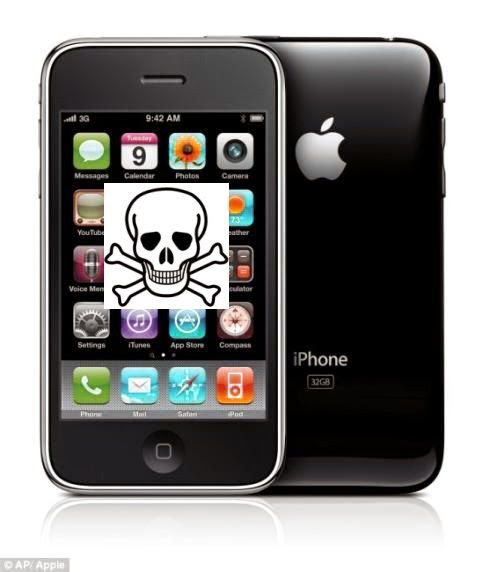
Does iPhone Configuration Utility Pose Threats to Your iDevices?


iPhone Configuration Utility Creating, saving, and accessing configuration profiles was never easy, so Apple Inc. has come up with the iPad configuration utility to ensure seamless sharing of the content. Undoubtedly, many enterprise users use iPhone Configuration Utility to manage iPads, iPhones, and iPod touch in corporate environments. The company has made this configuration utility available in various versions that fit compatible with Mac OS X and Windows PCs. You can download iPhone Configuration Utility for creating, editing and installing configuration profiles and also for installing provisioning profiles in the corporate environments. Apart from that, the configuration utility also helps in installing unpacked ‘.app’ bundles and allows a user to view the Syslog of the connected device in order to prevent serious company frauds. 

If you’ve read a number of how to use iPhone Configuration Utility guides, then follow this blog to know about some important things about the utility.

What is a Configuration Profile?


Apple’s iPhone/iPad Configuration Utility creates configuration profiles that are suitable for IT departments and cellular carriers. The files have the ‘.mobileconfig’ file extensions and they are quite helpful while distributing network settings to iOS devices. A configuration profile generally contains Wi-Fi, VPN, email, calendar, and passcode restriction settings to empower your iOS device with all the leading technological advancements. You can easily distribute the configuration profile to your employees and permit them to configure their Apple devices and then connect them to the corporate network.

How a Configuration Profile Can Become Dangerous? 

configuration utility  
So far, the configuration utility appears to be so good. If a malicious author gains an access to this utility, he can theoretically create his own configuration profile files and distribute them to spread malicious infections on your iOS devices. The profile may configure your clean and virus-free iOS devices to use a malicious proxy or VPN, allowing the attacker to monitor everything you transfer or access using a particular network. Additionally, the malware author may trigger the configuration profile to redirect the connected device for phishing websites or malicious pages.

How Malicious Configuration Profiles Can Get Installed?

Malicious Configuration  
You can distribute configuration profiles as email attachments as well as files on web pages. An attacker may create a phishing email and encourage employees to install a malicious configuration profile that is already there as an email attachment. He can also set up a phishing site, which tries to download a malicious configuration profile file, and redirects users to the web site until infection gets installed.

When the configuration profile gets downloaded, iOS will ask for your permissions about installing the profile on your device. If you download and install a malicious configuration profile, then your PC, online, device, user, and data security will be at a stake. The malicious configuration profiles can only damage your iDevice in a limited way as it can’t replicate itself like other computer viruses. The best part of the infection is that it automatically gets removed from your iOS devices and also erases the harmful changes, whenever you delete the malicious configuration profile.

Simple Tips for Managing Installed Configuration Profiles


•        Open the ‘Settings’ app on your iPhone to view all the configuration profiles installed on your device

•        Tap on the ‘General’ category and look out for the ‘Profile’ option

•        If you can’t see the ‘Profile’ option on the ‘General’ tab then it simply means that you don’t have any configuration profile installed on your device

•        If you see the ‘Profile’ option, tap on it to view your installed configuration profiles

•        Read the details of the configuration profiles, inspect them, and immediately remove the ones that you don’t need

Enterprises should prevent their employees from downloading and installing additional configuration profiles on their corporate iDevices. Corporate companies should also check their managed devices regularly to look for additional configuration profiles installed on them, and they should remove them remotely. 


Conclusion


It is true that Apple’s iOS is not as much vulnerable to malware as Windows is, but it is also not completely impervious. Malware authors and attackers may try installing malicious configuration profiles to infect an iPhone or iPad. Although, the vulnerability isn’t being exploited in the real world, but this blog is a gentle reminder to support the fact that no platform is completely secure. Users should pay high attention while installing certificates via configuration profiles as it may install a malicious certificate to infect secure websites.