Showing posts with label PC repair. Show all posts

Friday, 28 August 2015

A Computer Support Guide to Fix 0x00000116 Error Message

Usually, Windows users feel great while they are using Windows PCs when it is working smooth. However, sometimes they may start facing problems if any of their PC components malfunction and the system starts giving error messages. Windows Stop error message 0x00000116 is one of the error messages that you can come across while using your Windows system. You face this problem because of a variety of issues. You face the problem because of hard disk corruption, corrupt Windows Registry, virus or malware infection, junk of temporary files and folders, outdated or corrupt device drivers, corrupted RAM, and others.
In the current blog post, you will get to read useful information regarding how to fix the 0x00000116 error message on your own. It gives information on symptoms, causes and troubleshooting tips to fix the error. It is a critical error that can further damage your PC or its vital software and hardware components if you fail to resolve it quickly. To restrict the damage due to the error, you must act promptly and diagnose the PC and then fix the error.


However, the tips discussed in this blog will help you fix the issue but they cannot help you much if you are a basic PC user without much knowledge of computer parts and its operation. If you are one of those users then, you should place a call to a reputed computer support company to seek required technical support. These companies provide round the clock PC repair through trained and certified technicians. The technician will first connect to your PC through a secure remote connectivity tool and then diagnose the PC with your approval and then start the troubleshooting. In this way, you get quick resolution irrespective of your location, day, and time.
But if you want to fix the error on your own then keep reading the blog and go through the information mentioned below. Let us first know the causes of the error.
Causes of the Error

There are various reasons for the error. It may get flashed on your PC screen if you have any of the following:
  • Damaged hard drive
  • Insufficient hard drive space
  • Improper BIOS settings
  • Corrupt and outdated device drivers and others.
You also face the issue because of poor computer maintenance, incomplete or wrong installation of the Windows OS, malicious program installation, and improper installation of applications.

Symptoms

Once the error takes place on your computer, you will see a blue screen of death error. Apart from it, you will not be able to access any of the applications on your PC. You can also face screen freezing, sudden shutdown, etc. Understanding the symptoms helps you in choosing the best PC repair strategy.

How to Resolve

Find below a manual resolution that you can apply to fix the issue.

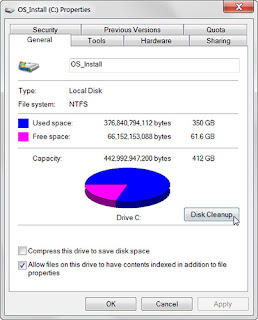
Delete the unwanted programs and applications to create more space on your hard disk

To delete the unwanted programs and applications, you should use Disk Cleanup. Disk Cleanup is a built-in Windows tool that can delete temporary files and other unused data.Disk Cleanup
  • To access the tool you need to right-click one of your hard drives in the Computer window and then select ‘Properties.’
  • Now you need to click the Disk Cleanup button in the ‘Disk Properties’ window.
  • Next you need to select the types of files that you want to delete and then click OK. You may think of deleting temporary files, log files, files in your Recycle Bin, and other insignificant files.
  • You should also clean your drive from unnecessary system files that don’t appear on the list. To delete the system files click the ‘Clean up System Files’ button.Clean up System Files
  • Once you do it, you should click ‘More Options’ button and then use the ‘Clean up’ button under ‘System Restore’ and ‘Shadow Copies’ to remove the system restored data.
  • Once you click the button, it will delete all restore data except the most recent restore point. So you should make sure that your PC is working fine before using it otherwise you will lose older system restore points.
If the 0x00000116 error message keeps on appearing even after removing unwanted programs and applications, then you should try the following methods to get rid of it.
  1. Disable or update the hard drive if it is damaged
  2. Reset the computer BIOS
  3. Remove third-party or unsigned driver
  4. Update the Windows OS
  5. If required, install the OS completely.

Conclusion

The steps and tips discussed above are quite helpful, but you must have a sound knowledge of computers and operating system. If you apply the tips in an untoward manner, then it might invite bigger problems for your PC. To avoid such a scenario, you should dial to a technical support company for instant computer support.

Monday, 3 August 2015

Five Methods You Should Try to Fix 0x80070035 Error Message

 Did you just see the 0x80070035 error message on your Windows laptop screen? Are you now looking for ways to troubleshoot the error on your own? If yes, then you are landing on the right page. Before you apply troubleshooting tips mentioned in this blog, you must establish the error message, its causes, and symptoms carefully. Otherwise, you will end up applying the wrong set of troubleshooting tips to make the situation worse than earlier. It gets advisable here that if you are not well-versed with PC repair then start searching highly professional tech support companies that can provide you instant computer repair.
0x80070035


Computer repair is a comprehension service that involves all aspects related to your PC. If a company is providing your tech support, then it means that it has computer technicians who are well-trained to handle a variety of issues. The issues might relate to virus infection, corrupt Windows registry, outdated or incompatible drivers, and more. So the most important task here is to choose the right computer repair company if you are looking for a third party agency. But if you want to fix the error on your own, then keep reading the blog further to know about the tips to fix the error.

Causes of the Error


You see the 0x80070035 error message on your screen when you fail to access the network resources. Thus, it is a network-related error that can halt your productivity. It is a confusing error because you face the error even when you can pin the resources. It means that the resource is online with appropriate RDP into it that suggests that the user carries some access. But unfortunately, when you try to connect to the network, you face the error.

At most of the occasions, you see the error on your PC screen because of issues with Firewall, Antivirus or DNS. So let us try to troubleshoot the error considering these aspects.

How to Troubleshoot the Error?


After you got the preliminary idea about causes of the error let us know the ways to fix it. Apply the following tips to get it fixed. You need to use various methods to fix the issues.

Method One: Disable Firewall

Tech Support
Disable the firewall and the antivirus program temporarily. Once you disable it, you need to go back to the Network & Sharing Center and check if you can still access the resource. If you fail to access it then delete the share and then add it again and then test. If it works, then there is an issue with the Firewall, and you need to configure it. But if it does allow the firewall to stay disabled then you need to try the Method Two mentioned below.

Method Two: Check Network Discovery


It is a simple step in which you need to make sure that if the network discovery gets turned on your PC that is trying to access the resource.

Method Three: Reinstall Network Adapter Drivers


At certain occasions, outdated or faulty network adapter drivers may cause the error. Therefore, you should check these drivers and reinstall the same if required. It is an important method as an incompatible, or corrupt driver may disrupt the entire process.

Method Four: Check Device Manager


Perform the below steps to check the device manager:

• Go to Device Manager and then expand Network Adapters.

• Move on to Device Manager to expand Network Adapters.

• Now click view from the top and then select ‘Show hidden devices,’

• From here look at the adapters, as you can see a long list of 6to4 adapters. Right-click on them and delete all of them except 1.

• Now reboot your PC and test if the error gets resolved.

Method Five: Turn on NetBIOS over TCP/IP


Perform the following steps to enable NetBIOS over TCP/IP:

• Hold the Windows Key and then Press ‘R.’ Now type ncpa.cpl and then click OK.

• Right-click on ‘Connections,’ and then choose ‘Properties.’

• Next you need to click “Internet Protocol (TCP/IP) Version 4” in the list.

• Now click ‘Properties’ again and then click ‘Advanced.’

• Now move on to the Advanced TCP/IP settings windows and then go to “WINS” tab.

• Go below the NetBIOS setting and click ‘Enable NetBIOS over TCP/IP,’ and then click OK.

• Finally, restart the PC and check if the error appears again or it got fixed.

Conclusion


You just went through the four significant methods that help you fix the 0x80070035 error message. Here you should keep two things in mind. The first is that you have to choose the methods carefully and try one-by-one and second is that you have to apply the steps carefully. Even one inappropriate step can leave you repenting for your ruined OS or lost data. You may require installing Windows altogether again. If none of the methods work to resolve the error, dial a tech support firm right now to get expert PC repair.

Tuesday, 14 July 2015

How to Troubleshoot the Remote Procedure Call Failed Windows Error When You Upgrade to Visual Studio 2005

Your Windows PC is supported by the most acclaimed operating system of the world. It runs Windows OS from Microsoft which is well-known for user-friendliness, a variety of features and tools and amazing productivity. Despite all these features and benefits, it is not immune from errors and issues. Being a Windows user, you probably know that your PC is subject to unexpected issues and errors and you cannot prevent it entirely. The best you can do to deal with such situation is to stay ready with a reliable tech support partner for instant online PC repair. 

Before discussing the symptoms, causes and troubleshooting tips of these errors, let us first know what a remote procedure call is or what role it plays on your PC? 

What is Remote Procedure Call (RPC)?


Remote Procedure Call that is also known as RPC is an inter-process communication (IPC) method that enables the users to exchange data and invoke functionality available with a different process. The process can take place on the same PC or on the local area network (LAN) or across the web. The RPC mechanism enabled by Microsoft also uses other processes or mechanism such as named pipes, NetBios or Winsock. 

It is important to ensure that all communications between the client and server take place smoothly. Having RPC in place, program logic and other procedure code can take place on different PCs that is important for distributed applications.


Now you understand the important of RPC in brief regarding the message communication between client and the server. Now let us know about the symptoms of the remote procedure call failed error.
In this blog post, we are going to discuss the resolution or fixes for the "The remote procedure call failed" error message that you might face while upgrading to a Visual Basic 6.0 project to Visual Studio .NET 2003 or Visual Studio 2005. You might face the error if you are using Windows Server 2003 SP1 or on Windows XP SP2.

Symptoms


You face the error when the upgrade fails while using a wizard to upgrade a Microsoft Visual Basic 6.0 project to Microsoft Visual Basic .NET or MS Visual Basic 2005. While performing the upgrade, you get an error message as mentioned below. 

“Unexpected exception occurred during upgrade engine operation: The remote procedure call failed.”

Causes

The remote procedure call failed error takes place when the VBU.exe tool develops compatibility issues with the Data Execution Prevention (DEP) option. Here you should know that the VBU tool starts when you upgrade the VB 6.0 project by using the Visual Basic Upgrade Wizard. 

How to Resolve the Error?


To troubleshoot the issue, first you need to add the VBU.exe tool to the DEP exclusion list. You need to follow the below-listed steps to get it done. 

·         First of all, click Start, and then click Control Panel, and then double-click System. As a result, the System Properties dialog box will appear.

·         Now click the Advanced tab, and then you need to click Settings under the Performance tab. As a result, the Performance Options dialog box will appear.

·         Now click the Data Execution Prevention tab. You should verify the Turn on DEP for all the programs and services remains enabled.

·         Here you need to note that by default, the Turn on DEP for all programs and services option remains selected in Microsoft Windows Server 2003 Service Pack 1 (SP1).

·         Now click Add and then click to select VBU.exe and then click Open.

·         Now in the warning box, click OK and then VBU.exe, which now appears in the DEP program area.

·         Finally, you need to click Apply and then click OK. Now you will see a dialog box stating that you must restart your computer let the changes apply and then finally click OK.

Now onwards, you will not see the error again on your PC. 


Conclusion

However, the tips mentioned above are expert approved and work in the majority of cases still you may face the issue again. In such cases, it gets advisable to contact a professional PC repair technician to get quick computer solutions. A technician from professional tech support firm can diagnose the PC carefully and then fix the issues within the minimum possible time.

Friday, 3 July 2015

Expert Computer Support to Troubleshoot Server Execution Failed Error in Windows 7 Media Player


Today, computers and technology have become an important part of our lifestyle. It is practically impossible to think of our lives without laptops, iPods and many other gadgets that technological advancement has bestowed us. Today PC users prefer to listen to music while working or browsing through the internet using media player. Windows 7 Media Player allows you to enjoy your music with high-quality streaming of music and media, organizing the music files, syncing, sharing and even ripping and burning CDs for backups. In short, it is a power-packed utility with the latest technologies that allow the music lovers to get the best. 

However, you may require troubleshooting your media player for a failed error message. There can be several reasons for the failed operation to open Media player. For instance, you have attempted to open the player shortly after closing it or a server execution failed issue. One can be confused about the steps that help you troubleshoot this problem at the earliest.

Role of Computer Support

In such tough situations, you may get an expert advice from a computer support specialist. A computer or technical support specialist primarily helps the users to resolve the issues related to computers, software, or even related concerns for scanners and printers. These people are highly skilled and trained in the field, and can walk you through the troubleshooting in simple steps. In the modern age, these professionals can also offer customized solutions for your problems over email, phone or even online chat. These professionals are often referred as helpdesk technicians.

Troubleshooting Tips


Are you using a Windows 7 Media Player? Enlisted below are methods by expert computer support to troubleshoot server execution failed error in Windows 7 Media Player:

Troubleshooting Method 1


1. The first troubleshooting method to fix the problem would require yougo to the Task Manager.
2. Press right-click on the Taskbar and click Task Manager. 

Task Manager
3. One can even try to run by pressing ‘Windows logo key + R’ and type taskmgr or Task Manager.
4. Find the Window Media Player icon and right click.
5. Once the options appear, click on ‘End task.’ 

Window Media Player

6. Check if the window Media Player opens correctly now.

Troubleshoot Method 2

1. Open start menu and type CMD, and right-click to ‘Run as Administrator.’
2. Press Enter and restart your computer to bring the changes into effect.

Troubleshoot Method 3

1. The second method requires you to Open CMD (Administrator).
2. For Windows 7 users, you would need to open the start menu and then type CMD.
3. After this, right-click on the CMD and you would get an option of 'Run as Administrator.'
4. Select this, and try to open the Windows Media player.
5. In case, it doesn’t open correctly, try other troubleshooting methods.

 Troubleshoot Method 4


1. For Windows 7 users, you would need to open the start menu and then type CMD.
2. After this, right-click on the CMD and you would get an option of 'Run as Administrator.'
3. To find Window Media Player Network Sharing Service, type Services.msc.
4. Then right-click the service and select the Properties options.
5. Select Apply and OK.
6. Check if your problem is solved.
If it’s the first time that you have encountered this issue, then you may consider uninstalling and reinstalling the media player or even restoring the settings. In case, these troubleshoot methods don’t work for you, there may be a need for PC repair or technical support. There are many certified professional who may be able to assist you in this task. Scan through the various options such as technical support or PC repair professionals, and choose the one that matches your specific requirements.

Conclusion

Technology is a blessing in disguise, but it too has its flaws. The troubleshooting methods for Windows Media Player are fairly simple as chalked out by expert computersupport for easy deliverability of solutions. You should take help of the professionals at the earliest rather making the situation worse. You can easily access computer support professionals through phone, mail and online chats for speedy solutions to your media player woes.

Sunday, 28 June 2015

Expert Computer Support to Fix Error 0x0000007B


We all experience computer errors time and again when using our computers. These errors can be quite inconveniencing to the computer users. They may be the cause of great losses when it comes to data or information stored in computers. It is important to be very safe when using our computers. Errors can bring with them great distractions and losses.

Users of Microsoft Windows at some point complained about errors on their computers. These errors caused a loss of their saved data. They experienced destruction in their systems and it led to huge amounts of losses.
In the recent years, there has been the emergence of computer support companies that provide services for our computers, IT solutions and help individuals solve computer errors by themselves at their convenience.

Symptoms
computer support

 This error occurs when Windows boot volume gets corrupted, or it may be a corrupted window. It can cause data loss. To a great extent, it can lead to the system crash if it stays in the system for long. The appearance of this error in the computer system can be because of different reasons. It is crucial to deal with this error whatever its cause may be. It is the best to deal with it immediately.

What the error does is that it makes the system vulnerable to so many things and it also reduces the PC’s speed. Before you fix the error, it is important to know the cause of the error.

It is worth noting that it is natural to experience BSOD error while working in a new window or installing a new program. One may receive the error message while setting up Windows XP or while running the setup program. This problem can get solved by simple troubleshooting methods that can be done by the computer user.

·         Your computer may show the following signs that will tell you that you may be experiencing 0x0000007b.
·         The computer will stop responding to your commands, and blue screen of death (BSOD) will appear.
·         Computer users may experience unwanted shut down by the computer.
·         0x0000007berror may appear on the screen with other unnecessary error messages on the computer screen.

0x0000007b error can be caused by damaged data on the system, viruses in some data, incompatible hardware, invalid registry key values, and device driver issues. It is important to try and follow the IT solutions below before turning to an expert for answers.


How to Resolve 0x0000007b Error Code?


0x0000007B

The error may disappear if you restart your computer. That is if your computer had experienced BSOD.
The installation of a new hardware or changes in the hard drive of the computer system may be the cause of the error. Undoing the changes may be a solution to the error. What one can do is perform windows start up. Boot Windows XP from CD and then press Enter at the setup screen when asked. Proceed on to press R. This will repair the Windows installation. Data and any files saved will not be lost. What will happen is that it will copy the original Windows files over the unwanted ones. 

Repairing any invalid registry key values can also solve the error.

Download an antivirus and run it on the PC. It will check the computer for any viruses. Note that the antivirus may fail to work. In this case, one will have to repartition and format the hard disk and probably also reinstall Windows. It is a solution to the error if it may have been caused by a virus.
While following the above-listed steps, it is important to be very careful and attentive. They may just be the solution to the error. It is worth noting that when making changes to registry values one must have expert knowledge on .dll and exe files.

Don't we all love what IT solutions provide to what may seem like complicated problems? They provide solutions that one can do by themselves before seeking the help of a professional.
These are just but the few solutions to the error that computer support provides in PC repair. PC repair can be done by an individual by using the computer support solutions provided by some of the manufacturers of the computers. An alternative is having professionals have a look at the problem one is facing. They are in a better position to diagnose the problem one is having.

How Computer Support Helps in Resolving the Error?


 Computer support has grown at a rapid pace in the recent times. It has brought many advantages to the users of this technology. Some of them include:

Quick and easy solutions to problems provided by users.
Computer support is convenient to the user because they can do it anywhere as long as they have their computer and probably the internet.

It is a cheaper way of solving errors because they are mostly 'do it yourself' compared to having to see a professional to handle the situation.

Conclusion


Windows errors are common, and every PC user is vulnerable to them. However, the tips mentioned above can fix the issue but it is not guaranteed and you the error may persist. Considering the severity of the error, it gets advisable to keep a professional tech support partner always ready for your help.