Showing posts with label 0x00000116. Show all posts

Friday, 28 August 2015

A Computer Support Guide to Fix 0x00000116 Error Message

Usually, Windows users feel great while they are using Windows PCs when it is working smooth. However, sometimes they may start facing problems if any of their PC components malfunction and the system starts giving error messages. Windows Stop error message 0x00000116 is one of the error messages that you can come across while using your Windows system. You face this problem because of a variety of issues. You face the problem because of hard disk corruption, corrupt Windows Registry, virus or malware infection, junk of temporary files and folders, outdated or corrupt device drivers, corrupted RAM, and others.
In the current blog post, you will get to read useful information regarding how to fix the 0x00000116 error message on your own. It gives information on symptoms, causes and troubleshooting tips to fix the error. It is a critical error that can further damage your PC or its vital software and hardware components if you fail to resolve it quickly. To restrict the damage due to the error, you must act promptly and diagnose the PC and then fix the error.


However, the tips discussed in this blog will help you fix the issue but they cannot help you much if you are a basic PC user without much knowledge of computer parts and its operation. If you are one of those users then, you should place a call to a reputed computer support company to seek required technical support. These companies provide round the clock PC repair through trained and certified technicians. The technician will first connect to your PC through a secure remote connectivity tool and then diagnose the PC with your approval and then start the troubleshooting. In this way, you get quick resolution irrespective of your location, day, and time.
But if you want to fix the error on your own then keep reading the blog and go through the information mentioned below. Let us first know the causes of the error.
Causes of the Error

There are various reasons for the error. It may get flashed on your PC screen if you have any of the following:
  • Damaged hard drive
  • Insufficient hard drive space
  • Improper BIOS settings
  • Corrupt and outdated device drivers and others.
You also face the issue because of poor computer maintenance, incomplete or wrong installation of the Windows OS, malicious program installation, and improper installation of applications.

Symptoms

Once the error takes place on your computer, you will see a blue screen of death error. Apart from it, you will not be able to access any of the applications on your PC. You can also face screen freezing, sudden shutdown, etc. Understanding the symptoms helps you in choosing the best PC repair strategy.

How to Resolve

Find below a manual resolution that you can apply to fix the issue.

Delete the unwanted programs and applications to create more space on your hard disk

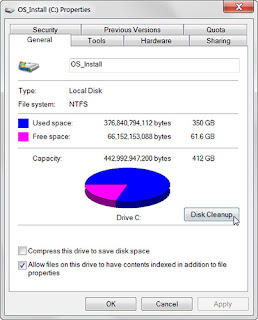
To delete the unwanted programs and applications, you should use Disk Cleanup. Disk Cleanup is a built-in Windows tool that can delete temporary files and other unused data.Disk Cleanup
  • To access the tool you need to right-click one of your hard drives in the Computer window and then select ‘Properties.’
  • Now you need to click the Disk Cleanup button in the ‘Disk Properties’ window.
  • Next you need to select the types of files that you want to delete and then click OK. You may think of deleting temporary files, log files, files in your Recycle Bin, and other insignificant files.
  • You should also clean your drive from unnecessary system files that don’t appear on the list. To delete the system files click the ‘Clean up System Files’ button.Clean up System Files
  • Once you do it, you should click ‘More Options’ button and then use the ‘Clean up’ button under ‘System Restore’ and ‘Shadow Copies’ to remove the system restored data.
  • Once you click the button, it will delete all restore data except the most recent restore point. So you should make sure that your PC is working fine before using it otherwise you will lose older system restore points.
If the 0x00000116 error message keeps on appearing even after removing unwanted programs and applications, then you should try the following methods to get rid of it.
  1. Disable or update the hard drive if it is damaged
  2. Reset the computer BIOS
  3. Remove third-party or unsigned driver
  4. Update the Windows OS
  5. If required, install the OS completely.

Conclusion

The steps and tips discussed above are quite helpful, but you must have a sound knowledge of computers and operating system. If you apply the tips in an untoward manner, then it might invite bigger problems for your PC. To avoid such a scenario, you should dial to a technical support company for instant computer support.

Monday, 27 July 2015

Advanced Tech Support Tips to Troubleshoot 0x00000116

Facing Windows error with your Windows 7 PC is nothing new, and you often come across such errors while working on your PC. Such errors take place on your computer without any previous alert or messages. There are various errors that you may come across, and 0x00000116 is one of them. It is a critical error that can significantly harm your PC and vital software and hardware components. It leaves you in a miserable situation if you are not prepared with a tech support partner to help you out of the crisis.

Nowadays, the majority of users rely on using laptops because of its higher portability and user-friendliness. But laptops are prone to such errors because of their compact design and rough usage. In such cases, you must have access to expert computer repair services to keep your device always up and running. The moment you come across this STOP error on your screen, you should look for a trained computer technician who can duly diagnose and troubleshoot the issue at the earliest.

Things to Do


Today every user acts like a computer technician to a certain extent because of wide usages and access to online information resources. The moment we face an issue with our computer, we go online and start looking various blogs, forums, and articles that can help in troubleshooting the issue. But remember that these blogs and articles wouldn’t of any help if you lack basic computer knowledge. So it is necessary that you have a sound exposure to hardware and software components of your PC so that you can apply the tips in the stipulated manner.

There are always two methods of fixing a critical error like 0x00000116. The first is self-troubleshooting with the available online resources and the second is hiring a third party tech support helpdesk. You can try the first one if you carry sound knowledge of computer working and technology. But if you lack these skills then you should go out and search any leading computer support agency for quick laptop repair.

In this blog post, you will get to know about symptoms, causes, and resolutions to fix the error. Let us begin with the symptoms of the error:

Symptoms of the Error


The error we are discussing in the current blog is both a stop error as well as a BSOD error, therefore, the symptoms of the error are similar to other BSOD errors. Once the error takes place, the screen turns blue and the system stops working altogether. The user fails to perform any activity on the system. At certain occasions, the user may also witness frequent Windows crashes.

Causes Behind the Error


There might be a variety of reasons behind the 0x00000116, and you find the exact error only through an expert diagnosis of the system. Missing or damaged system files are the prime reasons behind the error. Windows operating system runs with the help of many vital system files, and if any of those files goes missing, you face an error. While troubleshooting the error, it is important to ascertain that the OS doesn’t lack any important system files. If Windows lacks such files, then you either require repairing the OS or need to install a fresh OS copy to troubleshoot the error.

Steps for Resolution


Find the steps that help you in resolving the issue:

Install All Available Windows Updates


Microsoft keeps on releasing updates to plug the loopholes in the operating system. The updates aim to improve Windows system files. Sometimes, you can resolve a blue screen error by simply updating Windows using the latest Service Pack or other patch released by Microsoft.

Follow the below-mentioned steps to check for Windows updates if you are using Windows XP, Vista, 7, and 8:

· Start by clicking the Start button.

• Click the Start button.

• Now type ‘update’ into the search box and then hit ENTER.

• As a result, the Windows Update dialog box will appear.

• Click the Install Updates button if you find the updates.

Test Your RAM for Corruption


Such BSOD errors may also take place because of RAM or memory corruption. You may have RAM issues on your PC if you are facing random PC reboots, getting ‘beep’ codes on startup or frequent computer crashes. These symptoms indicate that your memory could be corrupt. According to experts, around 10 percent of the applications crashes in Windows take place because of memory corruption.

If you start facing the error right after adding new memory to your PC, then you should temporarily remove it to make sure that it is not the cause of the error. If it resolves the error, then it gets clear that it is the source of the issue. It indicates that the new memory that you have added is either incompatible or corrupt. In such cases, you need to replace the RAM with new and compatible one.

If you haven’t added any new RAM to your PC, then the next step is to perform a diagnostic test on the current memory on your PC. You need to conduct a memory test that will scan for hard memory failures and common Windows errors that might handle the error. Once you rectify the issues, the error will get resolved.

Conclusion


Fixing 0x00000116 error can be a daunting task for a novice user but once you apply the tips mentioned above, it gets easy for one and all. Taking these troubleshooting steps as a guaranteed way of getting the error fixed is not right. You may continue facing the error even after applying these tips. In case it happens to you, then call either an expert computer technician or dial to a tech support help desk for quick online computer repair.

Tuesday, 2 June 2015

Computer Support Can Help If You Are Facing 0x00000116 Windows Error


In the last couple of decades, technology has significantly evolved with the entry of many futuristic and modern devices and Internet-enabled services. We have now entered the era of touch devices, cloud computing, online services, and more. Computer support is an offshoot of this rapid technology growth that has enabled PC users to enjoy PC service with unprecedented comfort, convenience, and quick service delivery. Today computer solutions are available at your fingertips when you simply dial a number on your smartphone, and you get instantly connected to a certified technician. So, there is no need to take your device physically to a PC repair shop and then wait for many days to get it resolved. The process of PC service has become simpler than ever. 

0x00000116 Windows Error: An Overview 


 Like other machines and equipment, your computer is also not error-free. At times, Windows computers develop some error that may be an outcome of virus attack, inappropriate changes in the registry, corrupt registry, incomplete or inappropriate installation of software of hardware, and others. But in the majority of the cases, the error takes place when you update or install video display drivers. 

It is a blue screen error that appears when the user starts or boots the system to perform any activity. At times, you will notice that the system will start with Windows logo but after the logo appears, the entire screen of the PC turns blue with some error messages appearing in white. When you read the error message, then you come to know that your PC has developed the 0x00000116 error. 

Such blue screen errors may get very harmful for the system as it leads to a system crash or damage to its vital components. Therefore, it is imperative to fix the BSOD error at the earliest. The appearance of error codes conveys that something wrong is taking place in the system, and the user needs to fix it immediately. Every PC runs with the help of many important files, and the computer gives an error if any of these files gets damaged. 


Symptoms of the Error 

 
The error code mentioned in the blog is a stop and BSOD error. Therefore, its symptoms are similar to other BSOD errors. The screen turns blue with certain messages and then the system stops to work without any activity on the computer are the main symptoms of this error. It prevents you from doing anything on your PC, or you can say it becomes unresponsive to the keyword or mouse inputs. In certain cases, Windows also starts crashing at frequent intervals. 

Troubleshooting Guidelines 


It is a common Windows error that may take place in all Windows versions including 7, 8, XP, and Vista with a blue screen of death and stops all the activities on your computer. Like other errors you can resolve it by using certain guidelines and troubleshooting steps. You can use third party tools to resolve the issue manually. Manual steps are quite helpful but only an expert with detailed knowledge of Windows system and its files, settings, etc, can do it perfectly. Some of the ideal manual options of resolving the error include system repair, system restore, and system update. But if you don’t have the detailed knowledge about the OS then you should seek expert computer support technicians for appropriate computer solutions.
If you consider that you have that knowledge to troubleshoot your PC then follow the below-given troubleshooting steps. 

Troubleshooting Steps

 
First of all, you need to update the drivers that might be causing the error. Those who have recently updated their display/video or other important device drivers should check it first. Navigate to the following to check drivers:

Start >> Control Panel >> Windows Updates
Here you can check if a driver has been loaded there. You can also check generic troubleshooting tools or methods.   

Secondly, you need to check the security programs installed on your computer. In certain cases, the issues get triggered by security violations or virus or malware infections. So, it becomes important to ensure that your PC gets protected from online threats like viruses, malware, spyware, Trojans, etc. You need to ensure that the antivirus program is active, updated and running along with all its components.
Thirdly, you should check the status of recently updated video or display drivers. It becomes very important because sometimes inappropriate or outdated video drivers cause the error. Once again navigate to the following to look into the driver status. 

Start >> Control Panel >> Windows Updates 

If you find any inappropriate installation or outdated driver, then you need to either update it or replace it with an appropriate driver. To get the right driver, you can refer to the OEM website or reliable online resources. 

Conclusion


As you can see now that 0x00000116 is a stop and BSOD error that can potentially damage your PC if not resolved on time. Although, it is not very difficult to fix the error you must know the appropriate troubleshooting steps. If you are a very busy professional and, don’t want to spend time in troubleshooting then the right step is to employ PC service engineers for appropriate computer solutions.